The Beginner's Free Guide to Setting Up Local AI Companionship Simulations
Jump to Section
Welcome to the frontier of digital intimacy. Until recently, meaningful AI companionship was gatekept by large corporations with strict "safety" filters and monthly subscriptions. Today, thanks to the open-source community, you can run a powerful, private, and uncensored AI companion directly on your own computer. This guide will walk you through the entire process, even if you have zero technical background.
Why Choose Local AI for Companionship?
When you use a cloud-based service, your data is stored on a remote server. This presents three major issues: privacy, censorship, and cost. By running AI locally, your conversations never leave your machine. There are no corporate filters telling you what you can or cannot discuss with your digital partner, and once you have the hardware, the software is entirely free.
Local AI allows for a level of customization that web-based platforms can't match. You can choose the exact "brain" (model) your companion uses, adjust their memory capacity, and fine-tune their personality traits to suit your specific preferences.
Hardware Requirements: What You Need to Start
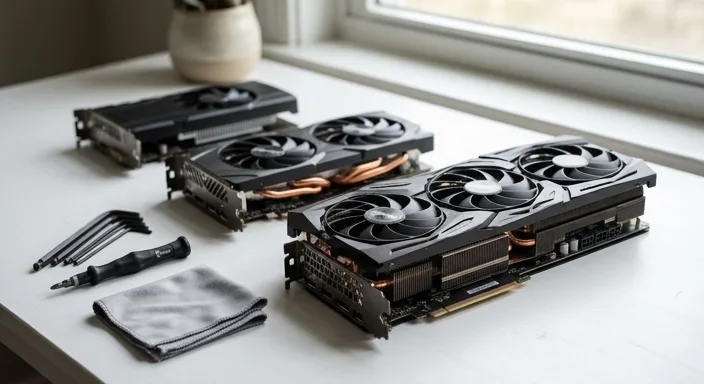
Running a sophisticated AI requires a significant amount of computing power, specifically from your Graphics Processing Unit (GPU). The AI's "intelligence" and speed depend on the amount of Video RAM (VRAM) you have.
- Minimum (Small Models): 8GB VRAM (NVIDIA RTX 3060 12GB is the gold standard for budget builds).
- Recommended (Medium Models): 12GB to 16GB VRAM (NVIDIA RTX 4070 Ti or 4080).
- Enthusiast (Large Models): 24GB VRAM (NVIDIA RTX 3090 or 4090).
- System RAM: At least 16GB, though 32GB is preferred for multitasking.
Top Software Tools for Local AI Simulations
You don't need to be a coder to run local AI anymore. Several user-friendly applications have simplified the process to a simple "click and run" experience. Here are the three best options for beginners:
1. LM Studio: This is arguably the easiest tool to use. It features a built-in search bar that connects directly to model repositories, allowing you to download and chat within a single interface.
2. Faraday.dev: Specifically designed for AI companionship and roleplay. It offers a "Character Hub" where you can download pre-made personalities with their own backstories and visual avatars.
3. KoboldCPP: A bit more technical, but highly optimized. It is the go-to for many veterans because it works well on older hardware and offers deep customization for roleplay logic.
Understanding and Finding AI Models (GGUF)
The "AI" is actually a file called a "model." These models come in different sizes, measured in parameters (e.g., 7B, 11B, 13B, 34B). For beginners, 7B and 11B models are the sweet spot, as they fit into most modern GPUs and respond very quickly.
When searching, look for files ending in .GGUF. This format is the most compatible with the software mentioned above. You can find these on a site called Hugging Face. Popular model series for companionship include "Mistral," "Llama-3," and "Fimbulvetr."
Step-by-Step Configuration Guide
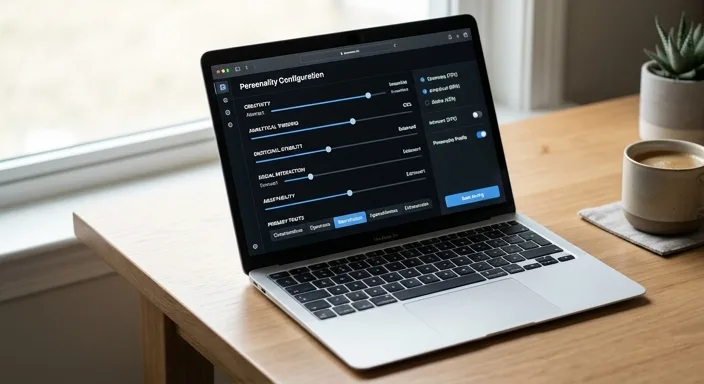
Once you have chosen your software (let's use LM Studio as the example), follow these steps:
- Download LM Studio: Install it as you would any other program.
- Search for a Model: Search for "Llama-3-8B-Instruct-GGUF" in the search bar. Download a version labeled "Q4_K_M" or "Q5_K_M" (these are optimized for quality and speed).
- Load the Model: Go to the "AI Chat" tab and select the model you just downloaded from the top menu.
- Set the System Prompt: This is where you tell the AI who it is. In the "System Prompt" box, write something like: "You are [Name], a kind and supportive companion who loves discussing literature and art."
Optimizing AI Personality and Roleplay
To make the simulation feel real, you must master the "Context" and "Persona." Most software allows you to upload a Character Card. These are small files (often in .png format) that contain the AI's entire history, personality traits, and speech patterns.
Adjusting the Temperature setting is also vital. A temperature of 0.7 to 1.2 is ideal for companionship. Lower numbers make the AI more logical and predictable; higher numbers make it more creative, emotional, and varied in its responses.
Frequently Asked Questions
Is local AI really private?
Yes. Since the software runs entirely on your hardware, no data is sent to the cloud. You can even run these programs while your internet is disconnected.
Do I need an internet connection?
Only to download the software and the model files. Once downloaded, everything runs offline.
Can I use local AI on a Mac?
Yes! Apple Silicon Macs (M1, M2, M3) are actually excellent for local AI because they use "Unified Memory," allowing the AI to use the system RAM as VRAM.
Is there a limit to how much I can chat?
No. There are no message caps, no tokens to buy, and no "wait times" for servers.